
Disable Comments in WordPress
Not every WordPress website needs a comment section. If you are running a news website, a business website, a portfolio, or a simple blog where you only publish information, you may prefer to keep comments turned off.
WordPress has built-in settings for managing comments, so you do not need to install a separate plugin just to disable them. You can turn comments off for new posts, close comments on an individual post, or disable comments on multiple existing posts using Bulk Edit.
One thing that often causes confusion is that changing the main Discussion setting does not automatically close comments on posts that were already published. That setting mainly controls the default behavior for new posts. Existing posts need to be handled separately.
Why Disable Comments in WordPress?
There are several reasons why a website owner may choose to disable comments.
For example, you may not want comments if your website:
• Publishes news or informational articles
• Does not need visitor discussions
• Wants to reduce comment spam
• Does not have time to moderate comments
• Uses another platform for discussions
• Wants a cleaner article layout
WordPress includes several built-in options for controlling comments, so you do not necessarily need a separate plugin just to disable them.
How to Disable Comments on New WordPress Posts
If you do not want comments enabled on the posts you publish from now on, changing the default Discussion setting is the easiest option.
Step 1: Open WordPress Settings
Log in to your WordPress dashboard.
From the left-hand menu, go to:
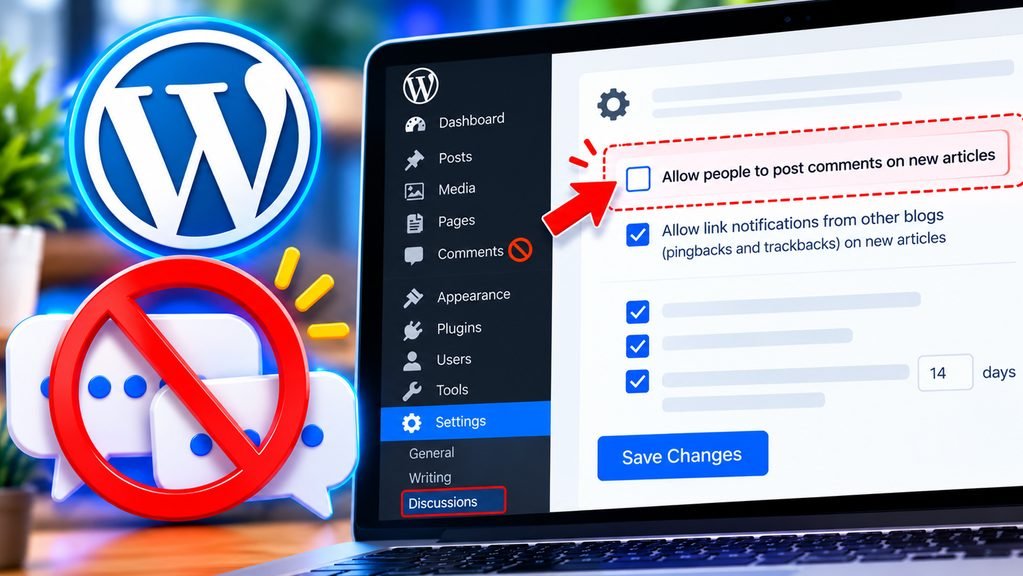
Settings → Discussion
The Discussion screen contains WordPress’s main settings for comments, pingbacks, trackbacks, moderation, and related options.
Step 2: Find the Default Article Settings
At the top of the Discussion settings, look for Default article settings.
You will find an option called:
Allow people to post comments on new articles
This setting controls whether comments are allowed by default when you publish new articles. WordPress also allows this default to be overridden for individual posts.
Step 3: Turn Off Comments
Uncheck:
Allow people to post comments on new articles
Once this option is disabled, WordPress will no longer enable comments automatically on newly published posts.
Step 4: Save the Setting
Scroll down and click:
Save Changes
That is all you need to do for future posts.
However, there is an important point to remember: this does not automatically disable comments on older posts. If you already have published articles where comments are enabled, you need to close them separately or use Bulk Edit.
How to Disable Comments on an Existing WordPress Post
If you have already published a post and want to turn comments off for that particular article, you can change its Discussion setting.
Go to:
Posts → All Posts
Find the post you want to modify and open it for editing.
Inside the post editor, look for the Discussion settings. Depending on the WordPress editor and your site configuration, the option may appear as Allow comments or as a discussion control where you can close comments.
Set comments to Closed or turn off Allow comments, then save or update the post.
After saving the change, visitors will no longer be able to submit new comments on that post.
A Faster Option: Quick Edit
You can also use Quick Edit from the Posts screen.
Go to:
Posts → All Posts
Move your mouse over the post you want to change and click Quick Edit.
WordPress’s Quick Edit interface can include an Allow Comments option. Turn it off and click Update.
This can be useful when you only need to change comments for one or two posts and do not want to open the full editor.
How to Disable Comments on Multiple Posts
If your website already has several published articles, opening every post one by one can take a lot of time.
WordPress includes a built-in Bulk Edit feature that lets you change the comment setting for multiple posts at once.
Step 1: Open All Posts
Go to:
Posts → All Posts
Step 2: Select the Posts
Use the checkboxes beside the posts for which you want to disable comments.
You can select several specific posts or use the selection checkbox to select the posts displayed in the list.
Step 3: Choose Bulk Edit
At the top of the posts list, open the Bulk actions dropdown.
Select:
Edit
Then click:
Apply
Step 4: Change the Comment Setting
The Bulk Edit panel will appear.
Find the Comments option and select:
Do not allow
Step 5: Update the Posts
Click:
Update
WordPress will apply the setting to the selected posts. Its official documentation lists Comments Allowed as one of the fields that can be changed through Bulk Edit.
This is the quickest built-in method if you have a large number of existing posts.
Does Disabling Comments Delete Existing Comments?
No.
When you disable comments, WordPress stops visitors from submitting new comments. It does not automatically delete comments that have already been published.
Existing comments are managed separately from the WordPress Comments screen. From there, you can approve, unapprove, edit, mark comments as spam, or move them to the Trash.
If a post already has comments and you simply close comments on that post, the existing approved comments can remain visible.
How to Delete Existing Comments
If you want to remove comments that are already stored on your website, go to:
Comments → All Comments
WordPress provides different comment views, including approved, pending, spam, and trash.
You can select individual comments or multiple comments and use the available bulk actions. WordPress allows administrators to approve, unapprove, mark comments as spam, or move them to the Trash.
This means there are two separate tasks:
Disable comments → stops new comments from being submitted.
Delete existing comments → removes comments that are already present.
You do not have to delete existing comments simply because you have disabled new comments.
What If Comments Are Still Showing After Disabling Them?
The most common reason is that the posts were published before you changed the default Discussion setting.
For example, imagine you have 20 existing posts and then go to:
Settings → Discussion → Allow people to post comments on new articles
and turn that option off.
That setting affects new content by default. Your older posts may still have comments enabled. WordPress’s own FAQ explains that older posts need to be edited individually or changed using Bulk Edit if you want comments completely disabled.
If you want comments disabled across an existing site:
1. Turn off comments in Settings → Discussion for future posts.
2. Go to Posts → All Posts.
3. Use Bulk Edit on your existing posts.
4. Set Comments to Do not allow.
5. Click Update.
That covers both new and existing posts.
Do You Need a Plugin to Disable Comments?
For normal WordPress posts, no.
WordPress already provides built-in controls for disabling comments on new content, individual posts, and multiple posts.
A separate plugin may be useful for a specific requirement, but installing a plugin is not necessary just to turn off comments using the standard WordPress functionality.
Using the built-in settings also means you are not adding another plugin simply for a feature that WordPress already provides.
What About Pages?
Comments are not limited to blog posts. WordPress also provides comment controls for Pages.
If comments are enabled on a particular Page, you can change its Discussion settings in the same general way. WordPress also supports bulk editing Pages, including the Comments Allowed setting.
If you have comments enabled on both posts and pages, check both content types rather than assuming that changing the Posts settings will handle everything.
Why Do Some Website Owners Disable Comments?
The decision depends on the type of website.
A website that depends on community discussion may benefit from keeping comments enabled. A news or information website, on the other hand, may not need visitors to comment under every article.
WordPress itself notes that disabling comments can be a useful way to avoid spam on content where discussion is not important.
Comment spam is also a practical reason some site owners choose to turn comments off. WordPress provides moderation and spam-control settings for sites that want to keep comments, but if comments are not part of your website’s purpose, disabling them can be a simpler approach.
There is no requirement that every WordPress website must have comments enabled.
What Happens to Comments After They Are Disabled?
Disabling comments mainly affects the ability to submit new comments.
It does not mean that the WordPress Comments section or previously published comments are automatically erased. Existing comments remain managed separately through the Comments screen.
If you only want to stop new discussions, close comments.
Explore more technology guides on our Blog.