Learn how to transfer data from Android to iPhone, including contacts, photos, messages, WhatsApp, files, and more using 6 easy transfer methods.
Switching from an Android phone to a new iPhone doesn’t mean you have to leave your important data behind.
You can transfer many types of information, including contacts, messages, photos, videos, calendars, files, call history, and WhatsApp messages and media. Apple provides an official Move to iOS method for this, and compatible Android 17 or later devices can also use a newer transfer option without installing the Move to iOS app.
we’ll show you how to transfer data from Android to iPhone using the easiest methods.
What Is the Easiest Way to Transfer Android Data to iPhone?
For most people, the easiest option is Apple’s Move to iOS app.
It works during the initial iPhone setup and can transfer a wide range of content directly from your Android phone. Apple also supports a direct USB-C connection for compatible devices, which can provide a faster transfer.
If you have a compatible Android device running Android 17 or later, you may also see Transfer without App during iPhone setup.
Before You Transfer Data
Before starting the transfer, prepare both phones.
1. Charge both phones
Connect your Android phone and new iPhone to power.
2. Turn on Wi-Fi
Make sure Wi-Fi is enabled on your Android device.
3. Check iPhone storage
The data you’re transferring needs to fit on the new iPhone. If your Android device has more data than the available iPhone storage, the transfer may not complete properly.
4. Update Chrome if you need your bookmarks
If you want to transfer Chrome bookmarks, Apple recommends updating Chrome to its latest version on your Android phone first.
5. Keep the phones close
Don’t move the phones away from each other while the transfer is running.
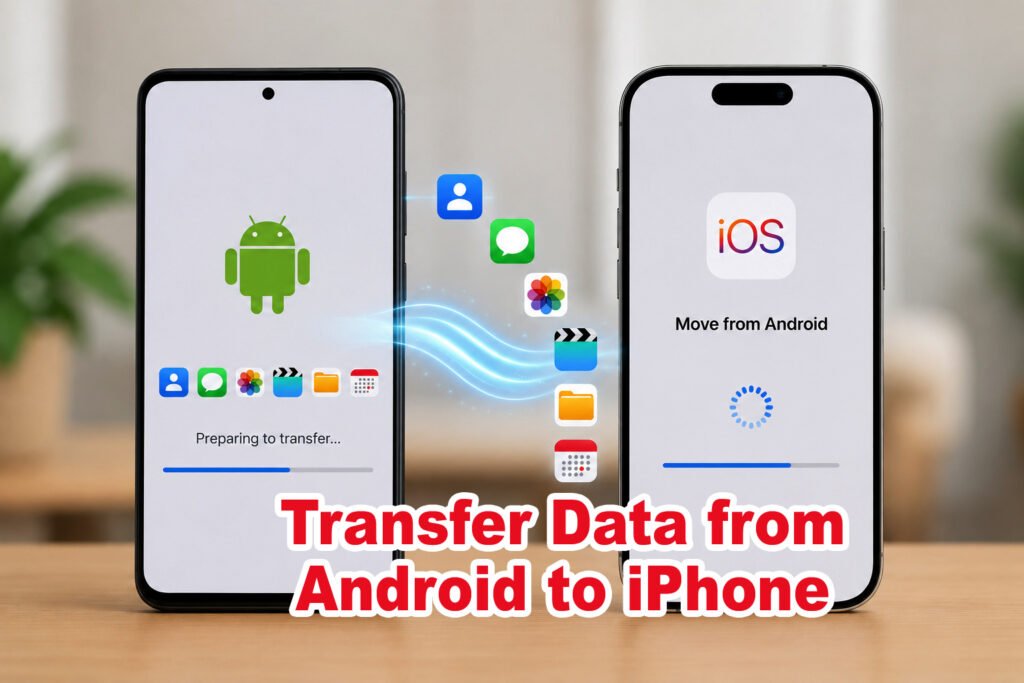
Method 1: Transfer Data from Android to iPhone from Using Move to iOS App
This is the main method recommended by Apple for moving data from Android to a new iPhone.
Step 1: Start setting up your iPhone
Turn on the new iPhone and follow the setup instructions.
When you reach the Transfer Your Apps & Data screen, select:
From Android
If you’ve already completed the iPhone setup, Apple says you’ll need to erase the iPhone and start the setup process again to use Move to iOS. If you don’t want to erase the iPhone, you can transfer your content manually instead.
Important: Erasing an already-set-up iPhone removes its existing content, so make sure you understand the consequences before choosing this option.
Step 2: Open Move to iOS on Android
On your Android phone, install and open Apple’s Move to iOS app.
Tap Continue and follow the instructions shown on your Android device. Apple may ask you to allow permissions such as Location and Notifications during setup.
Step 3: Get the code from your iPhone
On the iPhone, continue from the Move from Android screen.
A six-digit or 10-digit code will appear
Enter this code into the Move to iOS app on your Android phone.
Step 4: Connect the phones
Your iPhone will create a temporary Wi-Fi network.
When your Android phone asks you to connect to that network, follow the instructions on screen.
Once connected, the Transfer Data screen should appear.
Step 5: Select the data you want to transfer
Choose the content you want to move from Android to iPhone.
Depending on your devices and supported content, this can include contacts, messages, photos, videos, files, calendars, call history, WhatsApp messages and media, and more.
Step 6: Wait for the transfer to finish
This is important.
Even if your Android phone says that the transfer has finished, wait until the progress bar on your iPhone is completely finished.
Keep both phones:
- Close to each other
- Connected to power
- Undisturbed during the transfer
The time required depends on how much data you’re moving.
Method 2: Transfer Data from Android to iPhone Without the Move to iOS App
Apple now supports a newer Transfer without App option for compatible Android devices running Android 17 or later. Availability depends on device compatibility.
During iPhone setup:
- Open the Transfer Your Apps & Data screen.
- Tap From Android.
- Select Transfer without App.
- Place the Android phone next to the iPhone.
- Use the Android camera to scan the QR code displayed on the iPhone.
- Select the information you want to transfer.
- Wait until the transfer finishes.
- Continue setting up the iPhone.
If your Android device doesn’t support this option, use Move to iOS instead.
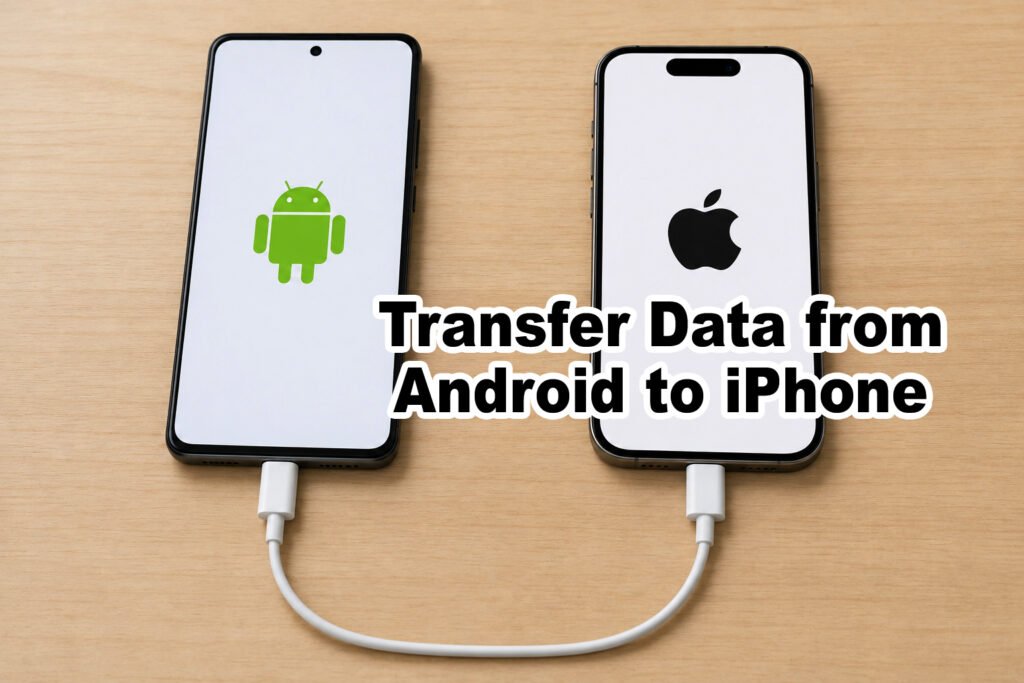
Method 3: Transfer Data from Android to iPhone Using a USB-C Cable
If your Android phone and iPhone support a compatible USB-C connection, you can connect the two devices directly.
Apple says a direct USB-C connection can provide a faster transfer compared with the wireless method.
This can be especially useful if you’re moving a large amount of photos, videos, or other data.
If Android displays a USB-related notification after connecting the cable, follow the on-screen instructions to adjust the USB settings if necessary.
What Data Can You Transfer from Android to iPhone?
Apple’s current Move to iOS documentation lists several types of content that can transfer.
These include:
- Contacts
- Message history
- SMS messages
- Camera photos and videos
- Photo albums
- Files and folders
- Web bookmarks
- Mail accounts
- WhatsApp messages and media
- Call history
- Calendars
- Voice Memos
- Some accessibility settings
- Some display settings
- Some free apps that are available on both Google Play and the App Store and support the transfer process
What doesn’t transfer automatically?
Apple says music, books, and PDFs need to be transferred manually.
How to Transfer WhatsApp from Android to iPhone
WhatsApp is one of the biggest concerns when switching phones.
Apple’s current Move to iOS documentation specifically includes WhatsApp messages and media among the supported content that can be transferred through the migration process.
For the best results, use the official Move to iOS process during the initial iPhone setup and follow the instructions shown on both devices.
Method 4: How to Transfer Photos and Videos Manually
If you don’t want to use Move to iOS, you can transfer photos and videos through a computer.
Apple’s manual transfer instructions recommend:
- Connect the Android phone to your computer.
- Locate your photos and videos, commonly inside the DCIM folder.
- Copy the files to your computer.
- Disconnect the Android phone.
- Connect the iPhone.
- Use the appropriate Apple software to sync the photos to the iPhone.
This method is useful when the iPhone has already been set up and you don’t want to erase it.
Method 5: How to Transfer Files and Documents
If your documents are already stored in a cloud service such as:
- Google Drive
- Dropbox
- Microsoft OneDrive
install the corresponding app on your iPhone and sign in to access your files.
For files stored locally on the Android phone, you can also use a computer to copy them before moving them to the iPhone.
Method 6: How to Transfer Music, Books and PDFs Manually
Music, books, and PDFs aren’t transferred automatically through Move to iOS. Apple recommends transferring this content manually.
You can use a computer to move your music, books, and PDFs from your Android phone and then transfer them to your iPhone.
What About Android Apps?
You can’t simply copy every Android app directly to an iPhone because Android and iOS use different app platforms.
However, Apple says that some free apps available on both Google Play Store and the App Store may be matched during the Move to iOS process. After the transfer, you can download the available apps from the App Store.
For apps that don’t transfer automatically, search for the iOS version in the App Store.
Can You Transfer Your Phone Number?
Depending on your carrier and device compatibility, your phone number and SIM/eSIM may also be transferable during the move.
Apple says users may be able to activate their phone number and SIM or eSIM on the new iPhone, although some users may be directed to their network provider to complete activation.
Apple also documents direct Android-to-iPhone eSIM transfer for supported devices, iOS versions, Android versions, and carriers.
Because carrier support varies, check with your mobile network provider if the transfer option isn’t available.
What If Your iPhone Is Already Set Up?
This is important.
If you’ve already completed the iPhone setup, you can’t simply open Move to iOS later and perform the normal migration.
Apple says you need to erase the iPhone and start the setup again if you want to use Move to iOS. Otherwise, transfer your content manually.
So if your iPhone already contains important data, don’t erase it before making sure you have a backup or deciding that you really want to restart the setup.
Move to iOS Not Working? Try These Fixes
If the transfer doesn’t work properly, Apple recommends several troubleshooting steps.
Keep Move to iOS open
Don’t switch to another app on the Android phone while the transfer is running.
Receiving a phone call or opening another app can interrupt the transfer.
Turn off mobile data
Apple recommends turning off mobile data on the Android device and trying the transfer again if you’re experiencing problems.
Restart both phones
Restart the Android phone and iPhone and try again.
Check storage
Make sure the iPhone has enough available storage for the content you’re trying to transfer.
Which Method Should You Use?
| Situation | Best option |
|---|---|
| New iPhone + normal Android phone | Move to iOS |
| Compatible Android 17+ device | Transfer without App |
| Large amount of data | USB-C direct connection |
| iPhone already set up | Manual transfer |
| Photos/videos only | Computer or cloud storage |
| Documents in Google Drive/OneDrive/Dropbox | Install the service’s iPhone app |
Final Thoughts
For most people, Move to iOS is the easiest way to transfer data from Android to iPhone.
Before starting, charge both phones, turn on Wi-Fi, check your iPhone’s available storage, and keep the devices close together during the transfer.
If your Android device is compatible with Apple’s newer Transfer without App option, you may not need to install Move to iOS. And if you’re transferring a large amount of data, a compatible USB-C connection can be a faster option.
The most important thing is to avoid erasing an already-used iPhone unless you’re sure you want to restart its setup.
Explore more practical technology guides on our Blog.