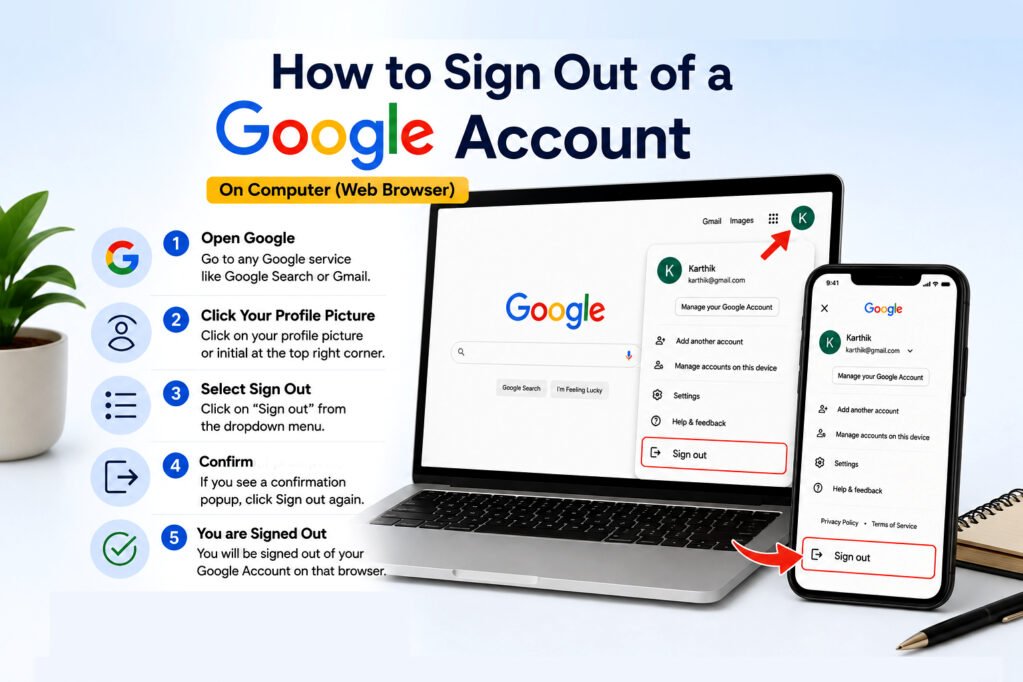
How to Sign Out of a Google Account: If you have signed in to your Google Account on a computer, phone, tablet, or someone else’s device, it is important to know how to sign out properly. This is especially useful when you are using a shared computer, selling or giving away a device, or simply want to stop using your Google Account on a particular device.
Signing out is also different depending on where you are using your account. On a computer, you can normally sign out directly from Google or Gmail. On a phone, the process may involve removing the Google Account from the device rather than using a traditional “Sign out” button.
How to Sign Out of a Google Account on a Computer
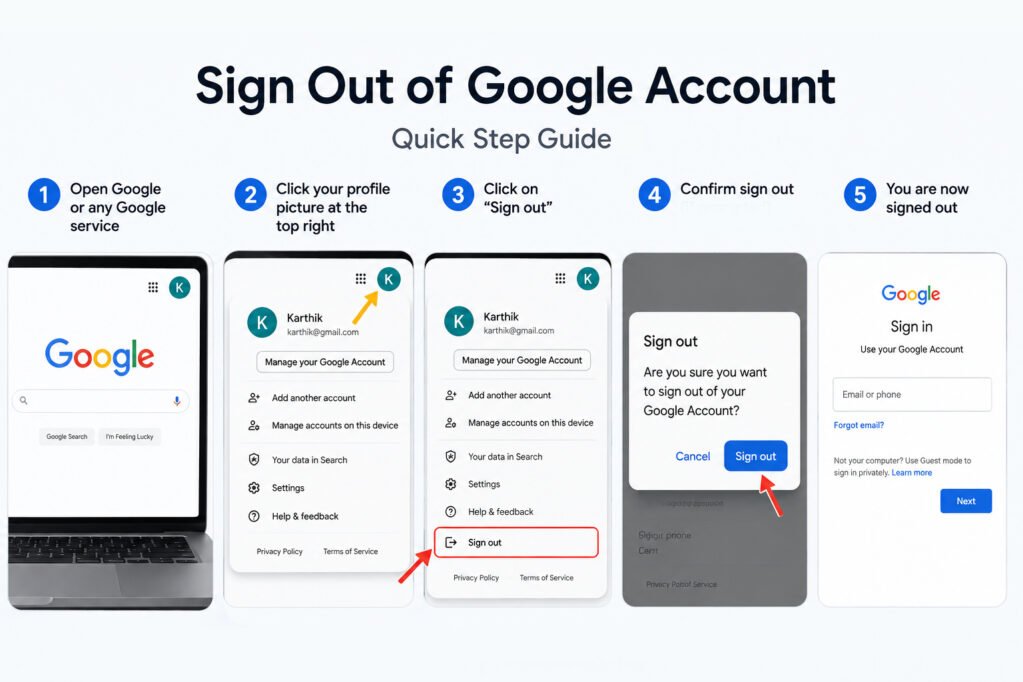
If you are using Google Search, Gmail, or another Google service in a web browser, signing out is straightforward.
Step 1: Open a Google Service
Open a browser such as Chrome, Microsoft Edge, Firefox, or Safari and visit a Google service such as Google Search or Gmail.
Make sure you are signed in to the Google Account that you want to sign out of.
Step 2: Click Your Profile Picture
Look at the top-right corner of the page.
You should see your Google Account profile picture, initials, or another account icon.
Click it to open the account menu.
Step 3: Select Sign Out
Click Sign out.
If you are signed in to more than one Google Account, you may see an option such as Sign out of all accounts. Choose the appropriate option based on what you want to do.
Once you sign out, Google will no longer keep that browser session signed in to the account.
How to Sign Out of Gmail on a Computer
You can also sign out directly from Gmail.
- Open Gmail in your browser.
- Click your profile picture in the top-right corner.
- Click Sign out.
- If multiple Google Accounts are signed in, choose Sign out of all accounts if you want to sign out of all of them.
This is useful when you are using Gmail on a shared or work computer and do not want your inbox to remain accessible to the next person.
How to Sign Out of a Google Account on Android
Signing out on an Android phone works differently from signing out on a computer.
The Gmail app does not provide the same simple sign-out option that you see on a desktop browser. Instead, Google explains that you can remove the Google Account from the device.
Step 1: Open the Gmail App
Open the Gmail app on your Android phone or tablet.
Step 2: Open Your Account Menu
Tap your profile picture in the top-right corner.
Step 3: Manage Your Google Account
Depending on your device and app version, you may see options for managing accounts or your Google Account.
Google’s current Gmail guidance allows you to manage the device sessions from the account’s security settings. You can also remove the Google Account from the Android device through the device’s account settings.
Step 4: Remove the Account From the Device
On Android, open:
Settings → Passwords and accounts
The exact name can be different depending on the phone manufacturer. You may see options such as:
- Passwords & accounts
- Users & accounts
- Manage accounts
- Passwords, passkeys & accounts
Select the Google Account you want to remove and choose Remove account. You may need to confirm the action using your phone’s PIN, pattern, or password.
Important: Removing the Account Does Not Delete It
This is an important distinction.
Removing a Google Account from your Android phone does not delete the Google Account itself.
It removes the account and its associated information from that particular device. Your Google Account still exists, and you can sign in to it again from another device.
How to Sign Out of a Google Account on iPhone or iPad
If you use Gmail on an iPhone or iPad, the process is slightly different from a computer.
From the Gmail App
- Open the Gmail app.
- Tap your profile picture in the top-right corner.
- Select Manage accounts on this device.
- Choose Remove from this device for the account you want to remove.
Removing the account from the Gmail app does not delete your Google Account. It simply removes the account from that device.
Google also notes that removing the account from the Gmail app can sign you out of other Google apps on the device, such as Maps and YouTube.
From Safari on iPhone or iPad
If you are signed in to Google through Safari, open Google and tap your profile picture in the top-right corner.
Then select Sign out.
If you also want to remove the account from the Google sign-in page on that device, Google provides a separate Remove an account option after signing out.
How to Sign Out of a Google Account Remotely
Sometimes you may sign in to Google on a computer, phone, or tablet and later realize that you forgot to sign out.
This can be a problem if you no longer have the device.
Fortunately, Google lets you review devices and sessions that have access to your account and sign out remotely.
Step 1: Open Your Google Account
Open your Google Account in a browser.
Step 2: Open Security Settings
Go to the Security & sign-in section.
Step 3: Find Your Devices
Look for the Your devices section and select Manage all devices.
Google shows devices and sessions where your account is currently signed in or was recently used.
Step 4: Select the Device
Find the computer, phone, tablet, or other device you no longer want connected to your account.
Select it to view more information.
Step 5: Sign Out
Choose Sign out.
If multiple sessions are shown for the same device, Google recommends reviewing and signing out of the individual sessions when necessary.
This is particularly useful if you lost a phone, left your account signed in on another computer, or used a device that you no longer have.
How to Sign Out of Google on a Device You Don’t Own
If you are using a public computer, internet café computer, office computer, or someone else’s device, take extra care when signing in to your Google Account.
The safest approach is to use a private or incognito browsing window when possible.
When you finish using the account, sign out and close the private browsing window.
Google recommends private browsing for temporary sign-ins on devices that belong to someone else.
If you used a normal browser window and forgot to sign out, you can use your Google Account’s device management section to sign out of that session remotely.
What Happens When You Remove a Google Account From Your Phone?
Removing an account from a phone does not mean that the Google Account has been permanently deleted.
The account remains available, but information associated with that account is removed from the device. Google notes that this can include information such as email, contacts, and settings associated with the account on that device.
You can sign in to the same Google Account again later if you still have the correct login information.
Does Signing Out Delete Your Google Account?
No.
Signing out only ends your current signed-in session.
Likewise, removing a Google Account from your Android phone or Gmail app does not delete the Google Account itself.
Deleting a Google Account is a completely different process and should not be confused with signing out.
If your goal is simply to stop using your account on a particular computer or phone, signing out or removing the account from that device is enough.
What If You Forgot to Sign Out?
If you forgot to sign out from a device that you no longer have, do not panic.
Open your Google Account and check:
Security & sign-in → Your devices → Manage all devices
Review the devices and sessions listed there.
If you recognize a device that you no longer use, select it and choose Sign out. Google also recommends securing your account if you notice a device or activity that you do not recognize.
If you believe someone else may have access to your account, take additional security steps, including reviewing your account activity and changing your password when appropriate.
How to Check Where Your Google Account Is Signed In
Google provides a device management section where you can review computers, phones, and other devices that have recently accessed your account.
Go to your Google Account and open:
Security & sign-in → Your devices → Manage all devices
You may see individual devices or separate sessions.
A session can be created when you sign in through a new browser, app, service, or private browsing window. It is also possible to see more than one session for the same device.
This makes the device management page useful for checking whether your account is still signed in somewhere you no longer use.
Google Account Sign-Out Methods at a Glance
| Situation | What to do |
|---|---|
| Google on a computer | Click your profile picture and select Sign out |
| Gmail on a computer | Click your profile picture and select Sign out |
| Android phone | Remove the Google Account from the device |
| iPhone or iPad Gmail app | Remove the account from the device |
| Forgot to sign out on another device | Use Manage all devices and sign out remotely |
| Public or shared computer | Use private browsing and sign out when finished |
Tips for Keeping Your Google Account Secure
Signing out is only one part of keeping your account secure. A few simple habits can make a big difference.
Use private browsing on shared devices.
If you need to access your account temporarily on another person’s computer, use an Incognito or private window where possible.
Don’t save your password on a public computer.
Avoid saving login information when using a device that does not belong to you.
Review your devices regularly.
Check the Your devices section of your Google Account from time to time and remove access from devices you no longer use.
Pay attention to unfamiliar devices.
If you see a device or session you do not recognize, investigate it instead of ignoring it.
Use additional account security.
Features such as two-step verification can provide an additional layer of protection for your Google Account.
Final Thoughts
Knowing how to sign out of a Google Account is a small but important part of protecting your personal information. The process is simple on a computer, while phones generally require you to remove the account from the device or manage the active session through your Google Account.
If you have used your Google Account on a shared computer or a device that you no longer have, checking Your devices and signing out of old sessions is a good step to take.
Most importantly, remember the difference between signing out, removing an account from a device, and deleting a Google Account. Signing out or removing an account from a device does not permanently delete the account or its data.
Recommended internal link: At the end of this article, you can naturally link to your existing “How to Screen Record in Windows 11: 4 Easy Methods” article from a sentence such as: “If you are also learning useful Windows 11 features, check out our guide on how to screen record in Windows 11.” This keeps the internal link relevant rather than adding a random link.
For more information about signing out of your Google Account, you can refer to the Google Account Help page.
Explore more practical technology guides on our Blog.